Camera On/Off Guide
The iDogCam Portal allows facility owners, management, or staff to easily update public access to your cameras.
Overview Client Name All-Day Settings Camera Selector New On/Off Message Day Select Daily On/Off Time Break TimeOverview
The iDogCam Time Updater is designed to allow facility owners, management, or staff to easily update the public access to your cameras. Each camera at a facility can have different on/off times for each day along with a global break time for all cameras. A new message can also be posted for your clients explaining your new hours or reason for the camera feed being unavailable. Below each section of the Updater is broken down and explained as to how it pertains to camera access.
| Client Name |
|---|
 |
| This section should display the business name. If this is not the case please contact iDogCam. Call us at 424-229-2146 or email: support@idogcam.com |
| All-Day Settings |
|---|
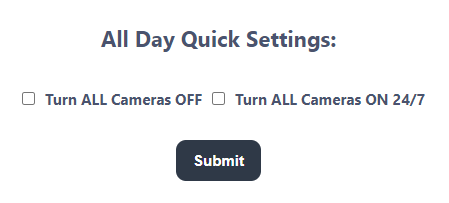 |
| The All-Day Settings allows users to turn ALL cameras off or on. This will either turn ALL cameras off 24/7 or on 24/7. If you set a message in the message section before submitting it will also apply to all cameras. If there is an issue at a facility this is the easiest way to cut public viewing quickly. |
| Camera Selector |
|---|
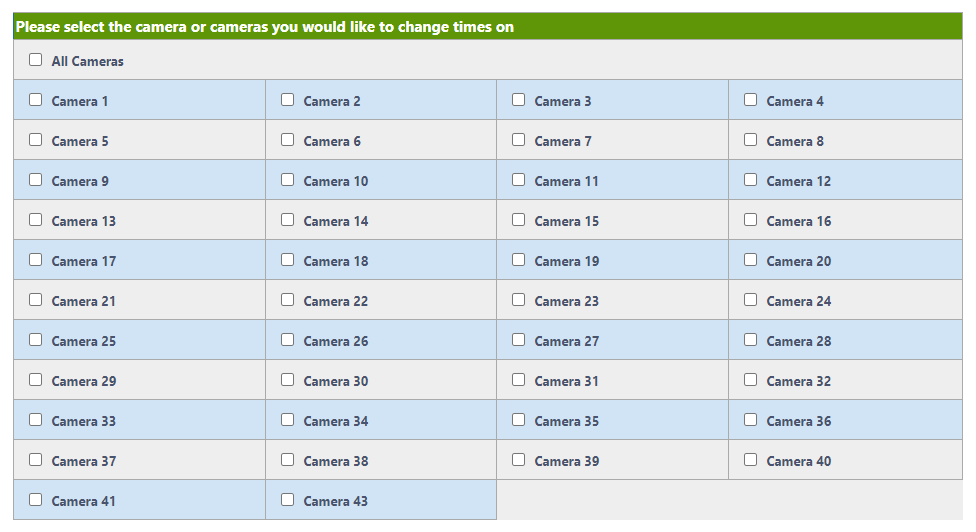 |
| Here users should first see the names of all their cameras displayed. (If this is not the case please contact iDogCam) You can select which camera or cameras to update times or messages on. If All Cameras is selected it will override any camera that is already selected. |
| New On/Off Message |
|---|
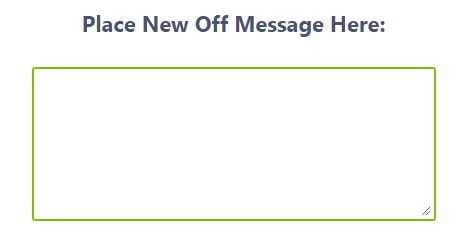 |
| This section is for inputting a new off message for your cameras. If left blank nothing will be updated, and the old message will persist. Please type the message as you would like it to appear on your viewer. Example: Cameras are currently off for the Holiday! Please try back tomorrow. iDogCam gets emailed after each update and will check for any issues within and update as necessary. |
| Day Select |
|---|
 |
| Here users can choose which day or days to modify times on. If Every day is selected it will supersede individual day selections. |
| Daily On/Off Time Selection |
|---|
 |
| Use the dropdown menus to select your main on and off time for each day. You must select both an on and off time or no updates will occur. Currently time increments are set to 30 minutes, if more precise times are needed please contact iDogCam and we can handle the change for you. To turn a camera on 24/7 please select 12:00 AM to 11:59 PM in the dropdown menus. The time zone will correlate with the physical location of the facility. |
| Break Time On/Off Selection |
|---|
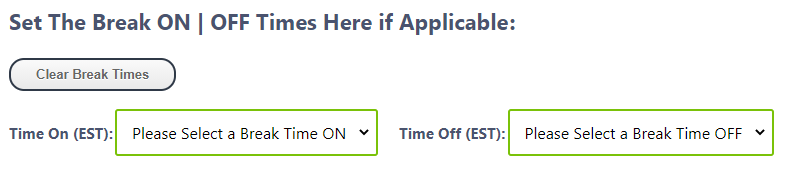 |
| Break times are applied to all days selected above. Use the dropdown menus to select your break time for all days. You must select both an on and off break time or no updates will occur. Currently time increments are set to 30 minutes, if more precise times are needed please contact iDogCam and we can handle the change for you. Break times do not have to be set. An example of a break time usage is: A facility has cameras that are currently on from 8:00 AM to 6:00 PM but want cameras off for lunch time. They would set the break time to: 11:00 AM to 1:00 PM on the dropdown menus. This would shut the cameras off from 11:00 AM to 1:00 PM. To clear break times back please select the cameras desired and press the "Clear Break Times" button. |